Make “higher” bounce in a roller-skating GIF
Recreate the “I swear it felt higher” caption in Video2Gif. Use two text layers, animate one word with a prompt, and export a looping GIF on iPhone.
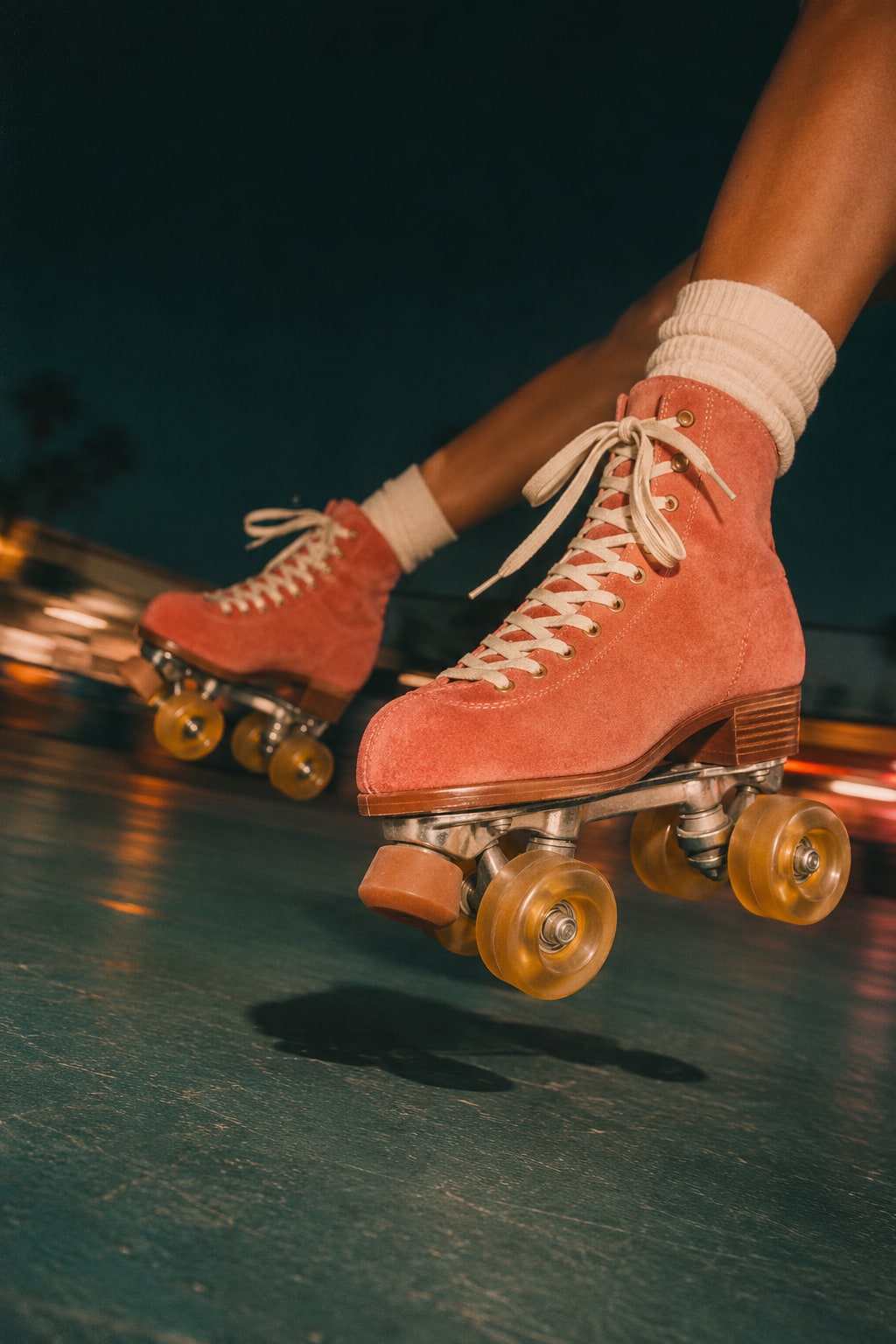
Look at the shadow under the skates. The wheels are barely off the pavement. You can almost hear the skater looking at the photo afterward and saying, “I swear it felt higher.” Let just that last word hop and the caption tells the joke twice.
The photograph and footer belong to the store artwork. The moving letters in this example come from Video2Gif 2.1.0’s text renderer. Here’s how to get the same idea onto your own footage.
Start with the jump
On iPhone, tap Choose a video and pick a short clip that shows the wheels leaving the ground. Trim it so the viewer sees a moment before takeoff and a moment after landing. Leave a little dark space above the skates for the caption.
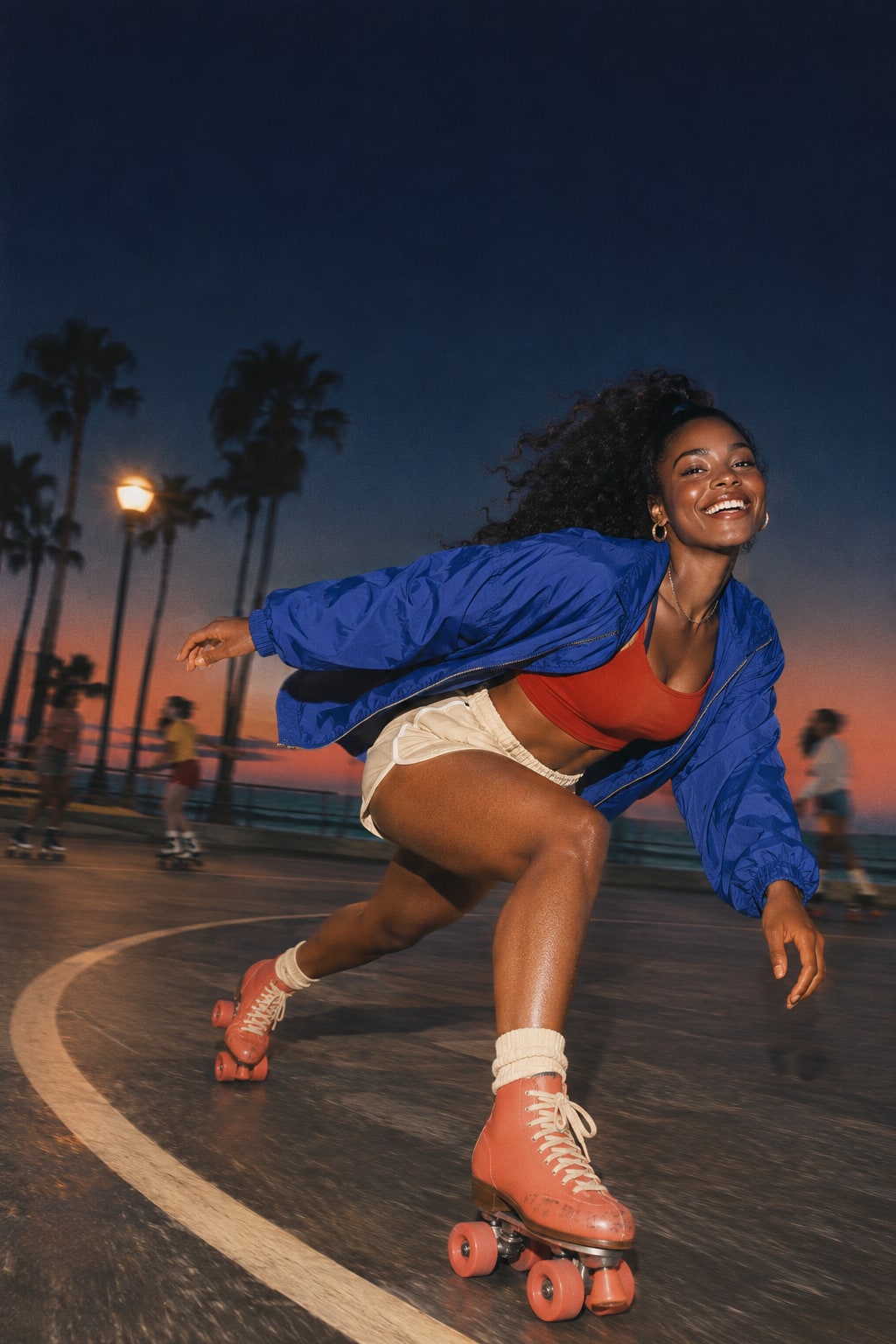
For the photo version, open More sources → Photos to GIF. In 2.1.0, this flow takes at least two photos. You can use the skater photo followed by the close-up of the jump. Save both to Photos, select them in that order, and tap Next. Give the close-up about two seconds so there’s time to read the line.
Give the punchline its own text layer
- Open Text → Enter text. Type I swear it felt. Choose a cream or white style and place the line in the dark area above the skates.
- Tap + to add a second layer. Type higher., including the period. Give it a rounded bold style and a warm yellow color. Drag it just below the first line, leaving a little room above it for the bounce.
- Select higher. and open AI. Paste this into Describe the effect.
Make these letters hop upward one after another, then land with one small rebound. Keep them yellow and easy to read. Hold the word still after it lands.
Tap Create effect · 1 credit. If this is your first generation, use Allow & create · 1 credit. Play the result on your clip. The first line should sit still while the yellow word moves. When the bounce feels right, tap Apply to text, then Done. If the caption should appear only during the close-up, use Timing on both layers to give them the same start and end.
Export the loop
Continue to the export screen, open Preview, and watch the landing and the restart. If the word gets cut off at the top, move its layer down. If it starts bouncing again before you can read it, give the close-up a little more time. Tap Create GIF, then save the result to Photos. You can use that saved motion on another caption from My effects.
Two more captions to try
The skater grinning at the camera — “Little me would be so proud.” Keep the first words still. Put proud. on its own layer in soft peach. For a quieter finish, try this prompt.
Let the word rise slightly as it fades in. Ease to a stop and leave it there, like someone taking a breath after saying it.
The dog chasing the ball — “I’d throw that ball for you forever.” The promise is in forever. Set it above the dog so the viewer can still see the ball. Here’s a motion that fits that line.
Fade the letters in softly from left to right. Let the whole word settle and stay visible long enough to read.